Thursday, July 18, 2013

AEC-Apps Wins the ArchitectMagazine R+D Award

If you haven't checked out AEC-Apps yet, you really should. That site has caught the industry by storm with tons of people helping make it better every day, why not you? AEC-Apps is a social application discovery and rating solution designed by the CASE guys under partnership with SOM.

Architect Magazine published an article today awarding AEC-Apps their coveted R+D award! We have a few people to thank for this tool and all of its success. Below are just a few of the folks that played a major roll in the development and design of AEC-Apps. Do any of these faces look familiar (in no particular order)?


Here's a shot of the home page, we hope you check it out if you have not already, and of course it is 100% free!


Monday, July 8, 2013

Announcing the 2013 Hands-on Revit API Training Workshop

It is time to announce the second annual CASE Revit API Hands-on Workshop!! We have dates and pricing ready and you can book a spot today! Spots are very limited, so reserve your spot early!

This workshop is designed for beginners!

All computers and software will be provided! All you need to bring is excitement and a willingness to learn... If you have concerns about hotel pricing, we have a few insider tips that we can let you in on to avoid those costly hotels. Contact us for details!


Free Stuff:
All attendees will receive a free 3 month trial membership to our CASE Pro Apps
http://apps.case-inc.com/proapps

When:
The workshop will run four days from Tuesday September 10th to the 13th. Workshop days will begin at 9am and finish at 5pm with a two hour break at noon. You will be building all kinds of useful tools that you can take with you!

  • Day 1 - (Tuesday Sep. 10) Introduction to .NET and Concepts
  • Day 2 - Introduction to Revit API
  • Day 3 - Data Samples
  • Day 4 - Elements and Geometry
  • Social - After conclusion of day 4

Where (The CASE Office):
401 Broadway, Suite 1600 (16th floor)
New York, New York
Map: http://bit.ly/N1PteT


Pricing!
We are offering an early bird discount that will gradually increase as we get closer. Act fast because spots are limited!

$1,500 (Aug 1 - Aug 17)
$1,850 (Aug 18 - Aug 31)
$2,000 After Aug 31


Booking a Spot
Send an email to [info at case-inc dot com] and copy myself [d dot rudder at case-inc dot com] with a title of "CASE Revit 2013 API Workshop" letting us know you are interested in reserving a seat for the API workshop. Please include a phone number and we will contact you to secure payment. Your price will lock in on the date your email is sent to us if we do not get back to you the same day (highly unlikely).

Thanks for your interest and we're looking forward to helping you get your Revit API learn on!


Thursday, January 10, 2013

CASE Apps Updates

Our BETA Subscription tools have launched!  We also took this opportunity to reorganize how we are loading these items into the Revit ribbon. All of the CASE tools still get installed from the CASE Add-In Manager and install onto a custom ribbon tab named "Case Design, inc."

This new ribbon design also provides automatic updates to the latest version when it gets posted to our servers (only for tools that you already have installed)!

There are only 4 subscription tools in the system at the moment, but several others are on the way within the next few weeks. We have also added a FAQ page that answers some of the most frequent support questions that we get about these tools.


If you have not received your free 60 day trial of the subscription tools, email me and I'll get an invite sent over to you.

Friday, December 7, 2012

AEC APPS is Launching!

We've been working hard on a web portal where people can socially track, rate, and explore all kinds of applications for AEC related workflows. You'll notice that these tools are not just limited to design and that you'll discover applications to cover just about any kind of workflow that AEC professionals run into.

Since it is entirely social, if there's an application you think i missing, you can add it yourself. Get involved and create a free profile today at https://aec-apps.com/


Tuesday, December 4, 2012

New Publication

Some of you may have heard about a small .NET publication I've been working on. Well... it has been published and you can get your very own copy! Don't read too much into the image on the cover ;)

It's a cookbook style how-to book packt with loads of code samples suited for developers of just about any experience level.

http://www.packtpub.com/customizing-autodesk-revit-2013-with-net/book


Wednesday, October 24, 2012

Setting the Visual Studio Version for Specific Solution Files

If you have multiple versions of Visual Studio installed such as 2010 and 2012, you can easily control what version of Visual Studio will be used to open your solution when it is double clicked.

First open your *.SLN file in notepad and adjust the very top two lines in the file to the following:

  • Visual Studio 2010
    • Microsoft Visual Studio Solution File, Format Version 11.00
    • # Visual Studio 2010
  • Visual Studio 2012
    • Microsoft Visual Studio Solution File, Format Version 12.00
    • # Visual Studio 2012

Thursday, October 11, 2012

CASE Add-In Manager Updated

Guess what! The CASE Add-In Manager has been updated! You may not notice anything too spectacular about this update, but just about everything about it has been improved.

http://apps.case-inc.com/content/add-manager

  • Previously installed tools on your system will be detected and checked as already installed when you run the manager
  • If you have a strong firewall policy at your office and you've previously seen zero of the tools in the manager, this update might fix that for you! Give it a try and let me know!
  • We will be unveiling a suite of paid subscription tools this year at AU2012, so the
    "Activate Subscription" button will remain grayed out until this official announcement...
  • New snazzy icon (I made it myself)!


Tuesday, October 2, 2012

Prevent Double Click Opening of Central Files

It happens all too often that a rookie user or non Revit savvy person double clicks on an RVT file to open it. If this RVT is a work shared central model then it is a real cluster F%#&. This can be disastrous to anyone working in the model as well as the model's health in general if not correctly saved back as a central model with all elements properly relinquished.


This post will show a way to keep RVT files from being able to be opened by double clicking them (do this on the client machines where you think run a high risk of causing an issue with this). This still will not prevent a "smart" user from dragging an RVT file onto their Revit shortcut on their desktop though, so be aware of that.

This can easily be setup in your IT Manager's Group Policy for all current users of a domain if you really want to enforce this for everyone... or maybe just to users within a certain group?... you get the idea.

You do NOT need admin privileges to make this adjustment because it will change the setting for the current user only.

Create a new txt file (or download mine) and place the following lines in it
(save it as "RevitFileOpenTroll.reg"):


Windows Registry Editor Version 5.00
 
[HKEY_CURRENT_USER\Software\Classes\rvt_auto_file]
@="BIM Model :P"
 
[HKEY_CURRENT_USER\Software\Classes\rvt_auto_file\shell]
 
[HKEY_CURRENT_USER\Software\Classes\rvt_auto_file\shell\open]
 
[HKEY_CURRENT_USER\Software\Classes\rvt_auto_file\shell\open\command]
@="explorer http://wikihelp.autodesk.com/Revit/enu/2013/Help/00001-Revit_He0/2278-Collabor2278/2333-Working_2333/2354-Working_2354/2363-Opening_2363"

Double click this file on any machine that you want to make this change for. After running this registry updater, double clicking an RVT file will open the Autodesk Wiki page showing the proper method for opening a workshared model.

You can change the web site to one of your own if you like that tells the proper method for opening an RVT in your organization.

Thursday, September 27, 2012

Free CASE Revit Add-In for October

It's that time again! I've just posted the free CASE Revit Add-In for October!

Basic Reporting (Hosting and Formulas) for Revit 2012 and 2013

This awesome little tool will export a CSV wherever you tell it of all formulas used in any family loaded in your current model. It can also report a full hosting report showing what element is hosting what. Let us know what you think below in the comments!

You will need to register and get the CASE Add-Ins manager installed to get these tools. You can get the path to the Add-In manager from here (after you register):
http://apps.case-inc.com/content/basic-reporting-hosting-and-formulas

For those of you that have strict firewall policies and do not see any Add-Ins in the Add-In Manager, we are working on an update that should be able to bypass and fix this issue ;)

Wednesday, September 19, 2012

Getting all File Based Family Elements by Category

I haven't shared any code on here in a while and thought this might be a good time to get back in the general sharing mode. I get asked a bunch about how the best way is to collect elements in the model especially file based component families (FamilySymbol).

This sample should work in Revit 2012 as well as Revit 2013.

Here's a quick and easy way to get all elements in your model of FamilySymbol organized by Category. We'll use a basic Dictionary class to hold the elements since Dictionaries are super fast to access values from without any iteration required.

First you will need to declare your dictionary somewhere in your code as either a private or public property (you decide), I'm using a property in this example.


  ''' <summary>
  ''' All Family Symbol Elements in the Model by Category
  ''' </summary>
  ''' <value></value>
  ''' <returns></returns>
  ''' <remarks></remarks>
  Public Property FamilySymbolElements As Dictionary(Of Category, List(Of FamilySymbol))


The next thing is to provide a subroutine where you can perform the gathering of the elements. After we instantiate a fresh dictionary to hold the data, we build a filtered element collector that collects elements by their class type. The class type we're interested in is FamilySymbol.

We then iterate over the elements returned by the collector and check if the category that the element belongs to is in our dictionary. Where the category does not exists as a key in our dictionary, we add a fresh list containing the single element. Where it already exists, we get the list containing the elements and add the new element to the list and apply the updated list back as the value to the dictionary for that category.


  ''' <summary>
  ''' Get all Family Symbol Elements
  ''' </summary>
  ''' <remarks></remarks>
  Private Sub GetSymbols()
 
    ' Fresh Dictionary
    FamilySymbolElements = New Dictionary(Of Category, List(Of FamilySymbol))
 
    ' Collector
    Using col As New FilteredElementCollector(Doc)
      col.OfClass(GetType(FamilySymbol))
      For Each x In col.ToElements
 
        Try
 
          ' Cast and Collect
          Dim m_fs As FamilySymbol = TryCast(x, FamilySymbol)
 
          ' Does the Category already exist in the system
          Dim m_cat As Category = x.Category
          If Not FamilySymbolElements.ContainsKey(m_cat) Then
 
            ' New List
            Dim m_l As New List(Of FamilySymbol)
            m_l.Add(m_fs)
            FamilySymbolElements(m_cat) = m_l
 
          Else
 
            Try
 
              ' Updated List
              Dim m_l As New List(Of FamilySymbol)
              FamilySymbolElements.TryGetValue(m_cat, m_l)
              m_l.Add(m_fs)
 
              ' Update the Key
              FamilySymbolElements(m_cat) = m_l
 
            Catch ex As Exception
 
            End Try
 
          End If
 
        Catch ex As Exception
 
        End Try
 
      Next
    End Using
 
  End Sub


Now we have a complete list of FamilySymbol elements in the model organized by category.

Monday, August 6, 2012

SOLD OUT - CASE Revit 2013 API Workshop

Thanks to all that enrolled into the Inaugural CASE Revit 2013 API Workshop! This is the first of many I'm sure based on the amount of interest that we saw from you guys.

For those of you that did enroll, please plan to stay late on Friday as we will be throwing a bit of a happy hour social in the office. We have a ping pong table and Fed thinks he can't lose... so there's that...


We are looking into the possibility of a travelling roadshow where me might end up doing a workshop in the Portland Oregon area as well as Dallas Texas... Stay tuned for updates if we figure out a way to make this work publicly.


Friday, July 27, 2012

CASE Revit 2013 API Workshop

It's time to make this official! We have dates and pricing ready for you guys and you can book a spot today! All computers and software will be provided so all you need to bring is excitement and a willingness to learn.


This workshop is also where I will be unveiling our subscription tools and giving away a few free 90 day trial memberships! You wont want to miss this because the general public will not be able to access these tools until November!

When:
The workshop will run four days from Monday September 11th to the 14th. Workshop days will begin at 9am and finish at 4pm with a one hour break at noon. You will be building all kinds of useful tools that you can take with you!

  • Day 1 - (Tuesday Sep. 11) Introduction to .NET and Concepts
  • Day 2 - Introduction to Revit API
  • Day 3 - Data
  • Day 4 - Elements and Geometry

Where (The New CASE Office):
401 Broadway, Suite 1600 (16th floor)
New York, New York
Map: http://bit.ly/N1PteT


Pricing!
We are offering an early bird discount that will gradually increase as we get closer. Act fast because spots are limited!
$1,500 until Friday August 3rd, 2012
$1,700 (Aug 4 - Aug 17)
$1,850 (Aug 18 - Aug 31)
$2,000 After Aug 31

Booking a Spot
Send an email to [info at case-inc dot com] and copy myself [d dot rudder at case-inc dot com] with a title of "CASE Revit 2013 API Workshop" letting us know you are interested in reserving a seat for the API workshop. Please include a phone number and we will contact you to secure payment. Your price will lock in on the date your email is sent to us if we do not get back to you the same day (highly unlikely).

Thanks for your interest and we're looking forward to helping you get your Revit API learn on!


Wednesday, July 25, 2012

CASE Add-Ins Manager is Here

Some of you may be more excited than others about this announcement... we at CASE are moving away from individual installers for our free tools. Instead we are offering a single desktop utility (no admin privileges required to install) that you can use to install and discover new tools that we offer.

http://apps.case-inc.com/content/add-manager


You may also notice a grayed out button referring to some kind of subscription... stay tuned for announcement relating to this as we will begin offering our high-powered tools to the general public via monthly or annual subscription...

Oh, and we have the August free tool ready to install using this new Add-In Manager, take a look at what Nathan Miller developed (this one was not my doing):
http://apps.case-inc.com/content/import-opennurbs-3dm-file-data

Friday, July 6, 2012

Free CASE Add-In Updates 2013 Change and Replace Linestyles

I just posted a 2013 installer for the free CASE Change and Replace Linestyles tool. You can download both the 2012 and 2013 version from the link below!

http://apps.case-inc.com/content/change-and-replace-line-styles

Tuesday, July 3, 2012

Hands on Revit API Training Workshops

Updated July 6, 2012!


I've got some good news for those of you interested in learning the Revit API. I will be conducting a series of hands-on workshops at the CASE office in New York (401 Broadway). These workshops will max out at ten (10) attendees. You will leave this workshop capable of developing your own add-ins.

Content will be tailored for beginner programmers that have familiarity with Revit. If you are a designer or support designers and have some sort need to learn BIM automation, this workshop is for you.

MacBook Airs loaded with all necessary software will be provided for your use during the workshops... just show up and be ready to learn!


View


Hardware
MacBook Airs
.NET

When?

Look for an official announcement later this month with the first workshop being held some time in August.

Length of Workshop?

We anticipate the workshop running 4 days with each session day running six hours with an hour long break in the middle (9am to 4pm).

Talent Assumptions / Prerequisites

  • Attendees will have basic knowledge of the Revit platform
  • Attendees have at least hear of the Revit API and have heard of the Microsoft .NET Framework

Programming Languages Used in Workshop

  • C# and VB.NET

Cost?

The cost for the workshops is yet to be determined. Stay tuned for announcements from the www.case-inc.com site.

Want to Reserve a Spot Now?

  • Leave a comment at the bottom with your name
  • DM or @ me on Twitter: AYBABTM

Tuesday, May 29, 2012

The Status of Revit 101

I haven't forgotten about you guys!

I will be posting more on this topic soon, but I have to be careful with what I write about mainly due to the fact that I am now under contract to write a book on customizing Autodesk Revit 2013 with .NET. As I complete chapters for the book, I will elaborate more on some of the topics here so that the book and these entries will compliment each other resulting in 37% more awesome.


The book should drop before September sometime if everything goes according to plan... Look for some Twitter hosted trivia to win free copies after it get's published.

Friday, April 27, 2012

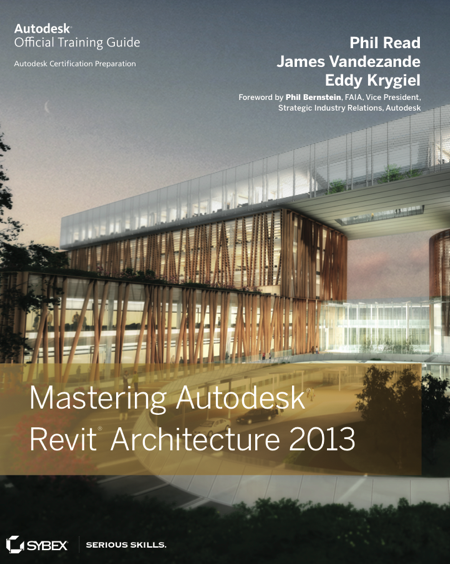
Mastering Autodesk Revit Architecture 2013

If you haven't made it over to Amazon to preorder your copy of the official Autodesk Revit Architecture 2013 training guide entitled "Mastering Autodesk Revit Architecture 2013" then you better go do it now...


This was my third year writing the API chapter with Phil Read, James Vandezande, and Eddy Krygiel. I wrote about the "Extrude Rooms to 3D Mass" sample that everyone seems to love so much. This sample was first released on the Case Design, Inc. free Revit Add-ins page. Now you have the opportunity to see the code and get an in-depth glimpse as to how this API sample works.

You can access the official API Sample exactly as it was used in the chapter from the main Sybex website. I will also be posting the sample to github (after the book officially publishes) where we can make updates if we need to. The sample was written in VB.NET, but a C# version may eventually get pushed into the github repo as well.

Wednesday, April 25, 2012

Revit API 101.2

The topic for this post will be centered on the .addin manifest file and how Add-Ins get loaded into the Revit session. The schema or file organization of the .addin file format will be discussed at first and then I'll explain a little bit about the options you have for configuring the manifest file up so that it loads the resources necessary for your tool to run automatically during debug.

Sorry if you've been hoping for a video, but this kind of information is best absorbed through good old fashioned black and white. And as far as language examples, these concepts are virtually identical between C# and VB.NET.

What is the .addin Manifest File?

For those of you that have experience using Revit Add-Ins in versions prior to Revit 2010, you may remember the old cryptic method of loading an Add-In by editing the Revit.ini file. The old Revit.ini method of loading Add-Ins into Revit is now obsolete and replaced by what is referred to as a manifest file. Manifest files are XML formatted ASCII files that tell Revit where the Add-In resources are and what class that the required IExternalApplication, IExternalCommand, or IExternalDBApplication interface has been implemented so that Revit can load the necessary commands and functionality into the session.

Revit searches for .addin files in two locations. The directory paths shown here are for Windows 7. Replace the YYYY in the paths below to match your Revit 2010 or higher installation versions (2010, 2011, 2012, 2013, etc.).

Constant for all users on the machine (may require admin permissions to modify)
  • C:\ProgramData\Autodesk\Revit\Addins\YYYY
Current user logged into Windows only (does not require admin permissions to modify)
  • %USERPROFILE%\AppData\Roaming\Autodesk\Revit\Addins\YYYY

Required Manifest Tags

There are slightly different requirements between command and application load manifests and quite a few optional tags that you can utilize in your .addin manifest files. This section will focus on the required tags. First I'll outline the required tags that are consistent for both application and command loading manifests and then the one tag specific to application load sequences.

Assembly (Required all All)
This tag is required for all kinds of applications and commands. It must contain the full file name to your DLL file. It is only required to contain a full path to the DLL if the DLL does not exist within the same directory as the .addin file. Relative pathing is supported by entering ".\" before the file path and or name so long as the directory is located beneath the same directory that the .addin file resides.

ClientId (Required for All)
A complete and fully qualified global unique identifier is required in this tag. This GUID needs to be unique across all other application or command ClientId's loaded in your session.

FullClassName (Required for All)
This is where you would enter the namespace(s) followed by the class name that contains the command or application interface that you want to execute or load. This tag should never have any spaces contained in it.

VendorId (Required for All Revit 2012 and Higher)
The four digit registered developer ID that can be obtained from the ADN site to identify the developer.

VendorDescription (Required for All Revit 2012 and Higher)
An explanation or description for the developer. It is common to list the company name and or the web address to a support site that relates to the tool.

Name (Applications Only)
A unique name for the application.

A Sample Manifest File

As you can see in the sample .addin file below, it is possible to nest multiple command and applications load sequences into a common .addin file. A sample application load sequence is loaded first with a command after it. The important thing to remember when combining multiple command or application loads is that they are all nested inside a single "RevitAddIns" tag.

<?xml version="1.0" encoding="utf-8"?>
<RevitAddIns>
  <AddIn Type="Application">
    <Name>Application Name</Name>
    <Assembly>Namespace.dll</Assembly>
    <ClientId>4ea76ff3-bba7-4969-9371-c7a3eb8ac0a8</ClientId>
    <FullClassName>Namespace.Class</FullClassName>
    <VendorId>XXXX</VendorId>
    <VendorDescription>Something about the developer, Link</VendorDescription>
  </AddIn>
  <AddIn Type="Command">
    <Text>My Command Name</Text>
    <Description>Example Command Description</Description>
    <Assembly>Namespace.dll</Assembly>
    <FullClassName>Namespace.CommandClass</FullClassName>
    <ClientId>9db2c58d-33f2-4ad1-8932-329dd83a4d0a</ClientId>
    <VendorId>XXXX</VendorId>
    <VendorDescription>Something about the developer, Link</VendorDescription>
  </AddIn>
</RevitAddIns>

Automatic Copying of a Solution Manifest to Install on Debug

You can have your .addin manifest copied to your .addins load directory automatically while debugging in Visual Studio by setting a post build event. This requires that your .addin file exist in the root of your project and included within your project's solution. An example on where and how to enter this to work on a Visual Basic .NET example is shown below.


Note: If you left out a file path to your assembly (file name only), you will be able to debug from your debug directory location during debug mode as well as run the main DLL in your Add-In load directory using the same manifest file. You will need to adjust command below to match the Revit version year and .addin file name as required. Just remember, you will need to include your .addin file withini your Visual Studio solution for this trick to work.


copy "$(ProjectDir)MyAddinFile.addin"
"$(AppData)\Autodesk\REVIT\Addins\2012\MyAddinFile.addin"

Tuesday, April 24, 2012

CASE Monthly Free Add-In for May

As most of you are aware, CASE offers a free Revit Add-In every month for you guys to play with. We post the installers on http://apps.case-inc.com/. We only require that you please register in order to gain access to the installers.

These installers require that you paste the provided installation link into Internet Explorer. No other browser will properly install the tool as we use Microsoft ClickOnce technology to handle the installers so you don't have to have Administrative permissions to do so. Since Revit requires Internet Explorer to function as well, this shouldn't be too tough of a requirement for you guys to meet.

Month of May Free Add-In - External Wall Facing Direction

The free Add-In for May (Revit 2012) originates from a request that came in from @ElrondBurrell via Twitter land. He wanted a tool that could report the directionality of all out facing external walls, so that's what this tool does. We might post an update eventually that includes windows and doors, but for now it only works on walls who's Function parameter is set to External.


The parameter selections listed in the top right offer a means to push the data into the selected parameter for each wall element. Be careful with this one as it will overwrite the data in that parameter for all walls as soon as you hit OK. Don't worry though, you can always undo if you need to.

If you choose to write the data out as an Angle, the angles start at North as 0 and go clockwise around up to 360.

Watch for the Twitter announcement at or around May 1 for the public release of this tool as well as future tools that we offer from your friends at @case_inc.

Thursday, April 19, 2012

Revit API 101.1

This is yet another installment of the ongoing Revit API 101 installment that can be viewed in numeric order from 101.#. Each are free so long as you agree to buy the writer a beer when you next see him: @AYBABTM (Austin, TX or next conference/gathering). While some basic understanding of .NET terminology and understanding is assumed in these posts, you'll do just fine if you follow the images and explanations.

I'll attempt to keep the posts slim and to the point, so if you have questions, please post them in the comments. Just remember, there's no crying in .NET.

The Revit API Namespaces

There are two DLL references that make up the entire Revit API, only one of which is required for all Revit API projects.

  • RevitAPI.dll                     (required for all Revit API projects)
  • RevitAPIUI.dll                 (required to access the application user interface objects)

The Required Transaction Attribute for All Revit API Class Implementations

There is now only one required API attribute implementation required for all Revit API implementations. The TransactionMode attribute needs to always be set immediately above the main class declaration as shown below. The TransactionMode attribute informs the Revit API as to how the pass or fail is handled for any given attempt to make changes to a Revit document using the Revit API. There are three settings for the TransactionMode attribute. The Automatic option is soon to be Obsolete, so that really only leaves two valid settings to chose from. The read-only setting is just that, so if you need to make changes to a model document, you should set your transaction attribute to Manual. We'll get into how to build and manage transactions in a future post.


The Revit API Implementations (3)

There are three ways to gain access to the .NET Revit API customization environment. The IExternalcommand implementation is by far the most common and will be discussed in our first real code example. The IExternalApplication interface is the second type and is used either to gain access to the IExternalCommand functions or events (document or application). The third and less common implementation is the IExternalDBApplication implementation which is similar to the IExternalCommand interface except that it cannot access any of the RevitAPIUI.dll namespaces.


The sample API Templates demonstrate implementations of the IExternalCommand interface in the Command class as well as the IExternalApplication interface in the Application class. The IExternalDBApplication class is similar to the IExternalApplication class except for minor differences as shown below.

Sample IExternalCommand Interface


Imports Autodesk.Revit.ApplicationServices
Imports Autodesk.Revit.Attributes
Imports Autodesk.Revit.DB
Imports Autodesk.Revit.UI
Imports Autodesk.Revit.UI.Selection

''' <summary>
''' Revit 2013 Command Class 
''' </summary>
''' <remarks></remarks>
<Transaction(TransactionMode.Manual)>
Public Class Command

    Implements IExternalCommand

    ''' <summary>
    ''' Command Entry Point
    ''' </summary>
    ''' <param name="commandData">Input argument providing access to the Revit application and documents</param>
    ''' <param name="message">Return message to the user in case of error or cancel</param>
    ''' <param name="elements">Access elements</param>
    ''' <returns>Cancelled, Failed or Succeeded</returns>
    Public Function Execute(ByVal commandData As ExternalCommandData,
                            ByRef message As String,
                            ByVal elements As ElementSet) As Result Implements IExternalCommand.Execute
        Try
            ' Add Your Code Here

            ' Return Success
            Return Result.Succeeded

        Catch ex As Exception

            ' Failure Message
            message = ex.Message
            Return Result.Failed

        End Try

    End Function
End Class

Sample IExternalApplication Interface


Imports Autodesk.Revit.ApplicationServices
Imports Autodesk.Revit.Attributes
Imports Autodesk.Revit.DB
Imports Autodesk.Revit.UI
Imports Autodesk.Revit.UI.Selection

''' <summary>
''' Revit 2013 API Application Class
''' </summary>
''' <remarks></remarks>
<Transaction(TransactionMode.Manual)> 
Class Application

    Implements IExternalApplication

    ''' <summary>
    ''' Fires off when Revit Session Starts
    ''' </summary>
    ''' <param name="application">The UI controlled application</param>
    ''' <returns>Returned status</returns>
    Public Function OnStartup(ByVal application As UIControlledApplication) _
            As Result Implements IExternalApplication.OnStartup

        Try

            ' Add your code here

            ' Return Success
            Return Result.Succeeded

        Catch ex As Exception

            ' Return Failure
            Return Result.Failed

        End Try

    End Function

    ''' <summary>
    ''' Fires off when Revit Session Ends
    ''' </summary>
    ''' <param name="application">The UI controlled application.</param>
    ''' <returns>Returned status</returns>
    Public Function OnShutdown(ByVal application As UIControlledApplication) _
            As Result Implements IExternalApplication.OnShutdown

        ' Return Success
        Return Result.Succeeded

    End Function

End Class

Sample IExternalDBApplication Interface


Imports Autodesk.Revit.ApplicationServices
Imports Autodesk.Revit.Attributes
Imports Autodesk.Revit.DB
Imports Autodesk.Revit.UI
Imports Autodesk.Revit.UI.Selection

''' <summary>
''' Revit 2013 API DBApplication Class
''' </summary>
''' <remarks></remarks>
<Transaction(TransactionMode.Manual)>
Public Class DBApplication

    Implements IExternalDBApplication

    ''' <summary>
    ''' DB Application Shutdown
    ''' </summary>
    ''' <param name="application">The controlled application</param>
    ''' <returns>Returned status</returns>
    ''' <remarks></remarks>
    Public Function OnShutdown(application As ControlledApplication) _
            As ExternalDBApplicationResult Implements IExternalDBApplication.OnShutdown

        ' Return Success
        Return Result.Succeeded

    End Function

    ''' <summary>
    ''' DB Application Startup
    ''' </summary>
    ''' <param name="application">The controlled application</param>
    ''' <returns>Returned status</returns>
    ''' <remarks></remarks>
    Public Function OnStartup(application As ControlledApplication) _
            As ExternalDBApplicationResult Implements IExternalDBApplication.OnStartup

        Try

            ' Add your code here

            ' Return Success
            Return Result.Succeeded

        Catch ex As Exception

            ' Return Failure
            Return Result.Failed

        End Try

    End Function

End Class